

You land in a new country, join a long queue at the airport, and start searching for signal. Meanwhile, your phone either displays “No Service” or quietly starts rolling up roaming charges. It’s a familiar travel headache, and for most trips it’s now avoidable.https://travelminx.com/how-to-plan-a-comfortable-road-trip-after-55-a-practical-guide/ Learning how to use an eSIM for travel takes about as […]
You land in a new country, join a long queue at the airport, and start searching for signal. Meanwhile, your phone either displays “No Service” or quietly starts rolling up roaming charges. It’s a familiar travel headache, and for most trips it’s now avoidable.https://travelminx.com/how-to-plan-a-comfortable-road-trip-after-55-a-practical-guide/
Learning how to use an eSIM for travel takes about as long as installing an app. You buy a data plan online, add it to your phone, and switch it on when you arrive. This guide walks you through every step in plain English, from compatibility checks to troubleshooting, so you can land with data already working.
What an eSIM Is, and Why Travelers Use One
A traditional SIM is a small physical card that connects your phone to a mobile network. An eSIM does the same job digitally. Instead of inserting a card, you download a profile to your phone.
For travelers, this has three big advantages:
- You can buy data before you leave home.
- You don’t need to hunt for a shop or kiosk at your destination.
- Your home SIM stays in your phone, so you keep your usual number for calls and texts.
The last point matters more than people expect. Your bank’s verification codes and calls from family may still reach your home number, as long as you manage roaming settings carefully.
Check Whether Your Phone Is Compatible
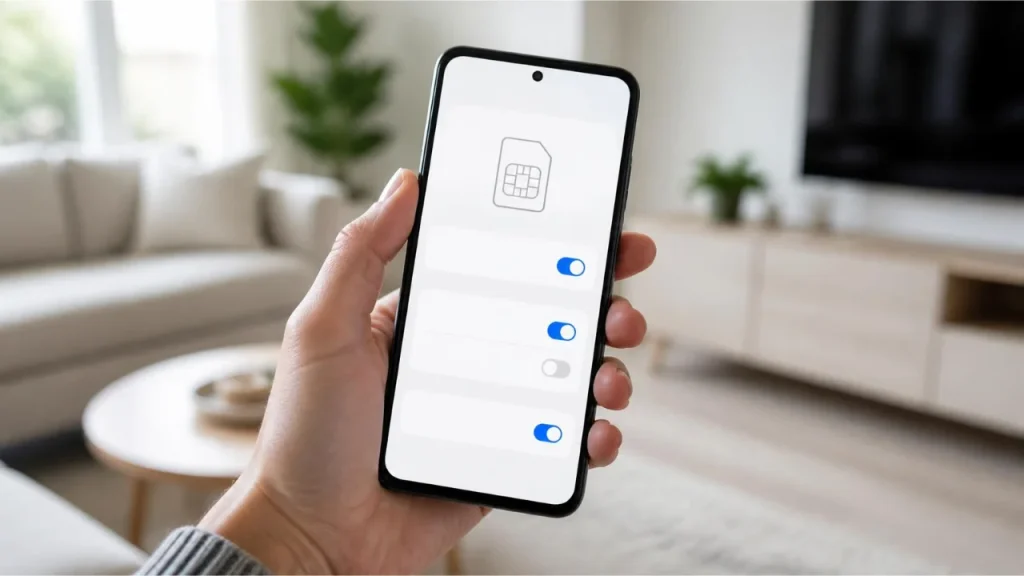
Before you spend anything, confirm that your phone supports eSIM and isn’t locked to a carrier.
The Quick Dial Test
On many phones, dialing *#06# displays device information. If an EID number appears, the phone has eSIM hardware. The method varies slightly by brand, and the Airalo help centre notes the steps may not apply to every device, so confirm with your manufacturer or carrier if you’re unsure.airalo+2
Settings Path on iPhone
Go to Settings > General > About. Look for an EID or a “Digital SIM” entry, and check the Carrier Lock line, which should read “No SIM restrictions” if the phone is unlocked.airalo+1
Settings Path on Android
On a Samsung Galaxy, open Settings > Connections > SIM Manager and look for “Add eSIM.” On a Google Pixel, open Settings > Network & Internet and tap the + sign beside SIMs. If you see a “Download a SIM instead?” option, the phone supports eSIM.airalo
Unlocking
If your phone is locked to your carrier, a travel eSIM may not work. The FCC advises asking your carrier to unlock the phone if you want to use a local or embedded SIM abroad. Ask early, because carriers can take days to process an unlock request.fcc
Why Roaming Costs More Than People Expect
It’s worth understanding what you’re avoiding. The FCC warns that roaming rates on foreign networks may be much higher because of additional fees. The EU notes that roaming outside the EU/EEA can be expensive, and recommends checking costs with your provider before you travel.fcc+1
One consumer-advice site says US carrier roaming can cost $10 to $50 per day, though prices differ by carrier and plan. That figure comes from an unrated source, so confirm your own carrier’s current rates before relying on it.simology
Many carriers also sell day passes or travel packages. Those can be convenient, but compare the price to a local eSIM before you decide.
Step-by-Step: Setting Up a Travel eSIM
Do this at home on reliable Wi-Fi, a few days before your trip.
Step 1: Pick a Plan
Look for these details in the app or on the provider’s website:
- Which countries the plan covers
- How much data you get
- How long the plan lasts
- Whether the clock starts at purchase, at installation or when you first connect
That last detail is worth checking. Providers handle activation differently, so read the plan description rather than assuming.
Step 2: Estimate Your Data Needs
A rough guide:
- Light use: maps, messages, email and the occasional search
- Moderate use: photo uploads, social media and some music
- Heavy use: video calls, streaming or using your phone as a hotspot
If you aren’t sure, take a day’s usage from your phone’s cellular statistics and multiply it by your trip length. Add a safety margin.
Step 3: Buy and Install
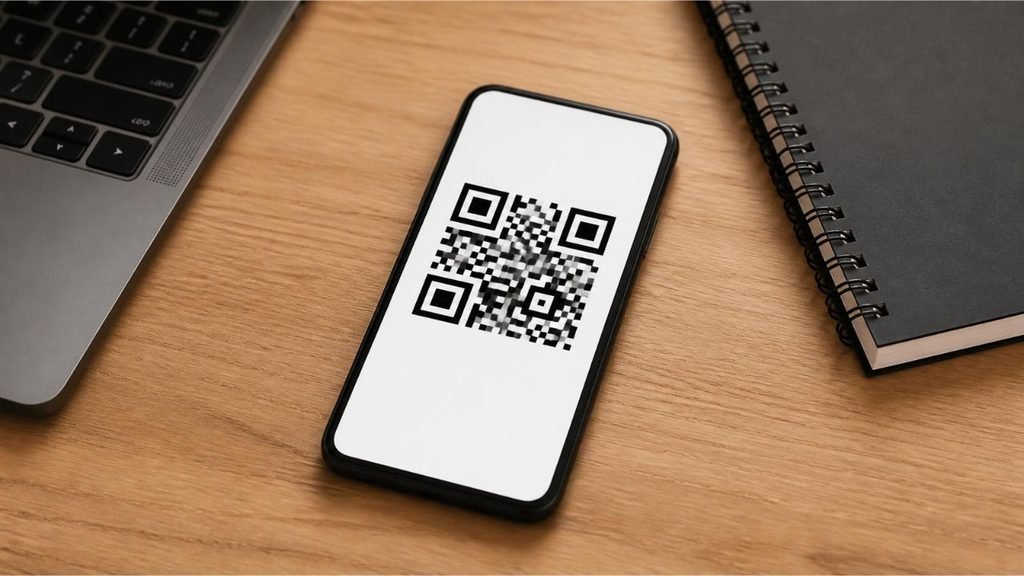
The provider will give you either a QR code or an in-app install button. Follow the instructions while connected to Wi-Fi. On an iPhone, installation usually happens through Settings > Cellular or Mobile Data > Add eSIM.jetpacglobal
Step 4: Label the Line
Give the new line an obvious name, such as “Italy Data.” You will thank yourself later, when two lines look nearly identical in your settings.
Step 5: Set Your Priorities
This is the step that protects your wallet:
- Keep your home line as the default for calls and messages.
- Set the travel eSIM as the line for cellular data.
- Turn data roaming on for the travel eSIM, because it usually needs it.
- Turn data roaming off for your home line.
Turning roaming off on your home line prevents it from quietly using expensive data. Instructions for disabling roaming vary by phone. On an iPhone, go to Settings > Cellular > Cellular Data Options > Data Roaming. On Android, look under Connections or Network & Internet > Mobile Networks.simology
Choosing the Right Plan for Your Trip

One Country
A single-country plan is usually the simplest choice. It’s ideal for a holiday in one place, and it often costs less than a regional plan.
Several Countries
Regional plans cover groups of countries under one allowance, which saves you from switching as you cross borders. Check that every country on your route is included, since coverage lists differ.
A Long Stay
For stays of a month or more, compare plan lengths carefully. Some travel eSIMs are built for short trips and expire sooner than you expect. A local carrier’s plan might suit you better, if you are able to buy one.
Don’t Skip the Fine Print
Look for:
- Speed limits after a data threshold
- Whether hotspot sharing is allowed
- Whether the plan includes a phone number
- Refund and support policies
An eSIM usually provides data only. If you need a local number for restaurant bookings or ride apps, check whether the provider offers one, or use messaging apps over data.
A Practical Example
Imagine a two-week trip through Italy and Spain with moderate data use.
A week before leaving, you confirm that your phone is unlocked and eSIM-ready. You choose a regional European plan and install it at home. Then you label the line “Europe Data” and set your home line to calls and texts only. On arrival, you turn on data for the eSIM, switch off roaming on your home line, and check that maps load before you leave the airport.
If your home carrier charges high international rates, this setup helps you avoid surprises. You still receive calls and verification codes on your home number if your plan supports that without data roaming.
Fixing Problems After You Land
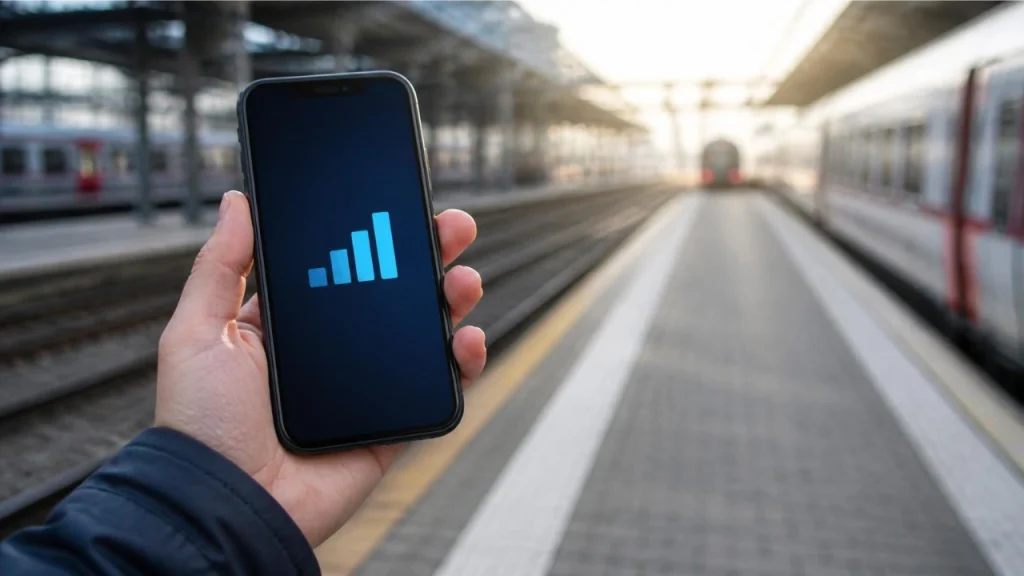
Most eSIM issues are fixable in a few minutes. Work through these in order:
- Toggle Airplane Mode. Turn it on, wait ten seconds and turn it off.
- Check the active data line. Make sure the travel eSIM is selected for cellular data.
- Enable roaming on the eSIM line. Many plans require it.
- Restart the phone. This clears many network glitches.
- Check the provider’s app. Some plans need specific settings, such as an access point name.
- Contact support. Most providers offer in-app chat.
Also turn off any VPN while troubleshooting, because it can interfere with the connection. You can re-enable it once data works.
Safety and Privacy Tips
- Buy only from providers with clear terms and a support channel.
- Don’t scan QR codes from unknown messages or emails.
- Keep your device operating system up to date.
- Use public Wi-Fi sparingly, especially for banking.
- Take a screenshot of your plan details and your support contact before departure.
Money-Saving Tips
- Use hotel Wi-Fi for large downloads.
- Download offline maps before you leave.
- Turn off background app refresh for heavy apps.
- Set a data warning in your phone settings.
- Compare plans before every trip, since pricing changes often.
Conclusion
An eSIM removes most of the friction from staying connected abroad. Check that your phone is compatible and unlocked, choose a plan that matches your route and data needs, then install it at home. Set your lines carefully, with your home number for calls and the eSIM for data.
Once you’ve done it once, the process is quick and repeatable. The next time you land in an unfamiliar airport, you can skip the queue and open your map while everyone else is still looking for signal.
FAQ
1. How do I know if my phone supports eSIM?
Dial *#06# and see whether an EID appears, or check Settings. On iPhone, look under General > About. On Android, look in your SIM or network settings. If you’re unsure, ask your phone’s manufacturer or carrier.airalo+1
2. Will I lose my regular phone number?
Not if you keep your home SIM active as a second line. Use the travel eSIM for data and keep roaming off on your home line to avoid unexpected charges.
3. Does my phone need to be unlocked?
Usually, yes. The FCC advises asking your carrier to unlock your phone if you want to use a SIM or eSIM from another provider abroad.fcc
4. Is an eSIM cheaper than roaming?
Often, but not always. Roaming rates differ by carrier, destination and plan, and some carriers sell travel passes. Compare your carrier’s offer with an eSIM before you decide.europa
5. What should I do if my eSIM doesn’t work abroad?
Toggle Airplane Mode, make sure the eSIM line is selected for data with roaming enabled, restart the phone and check your provider’s app. If it still fails, contact the provider’s support.
